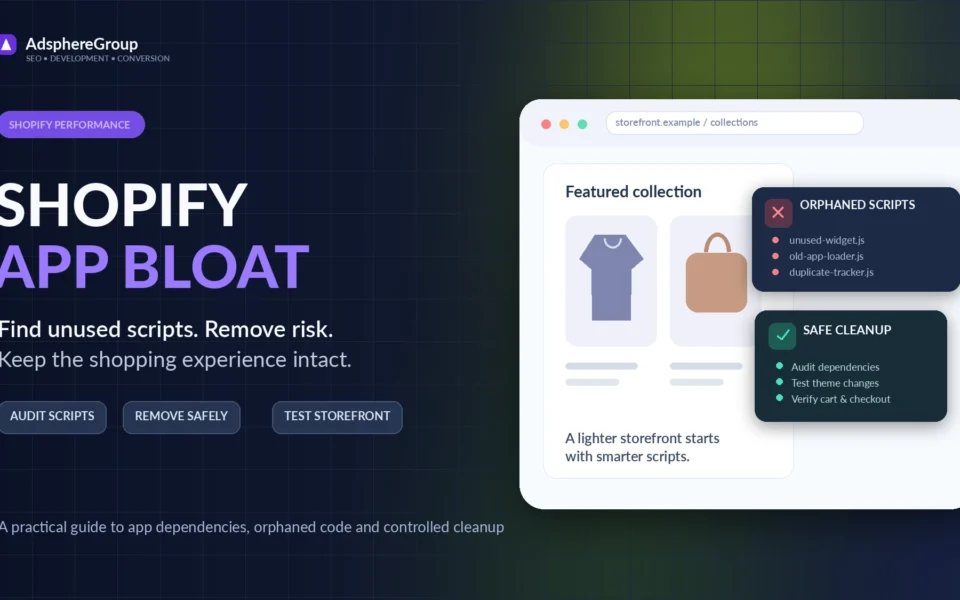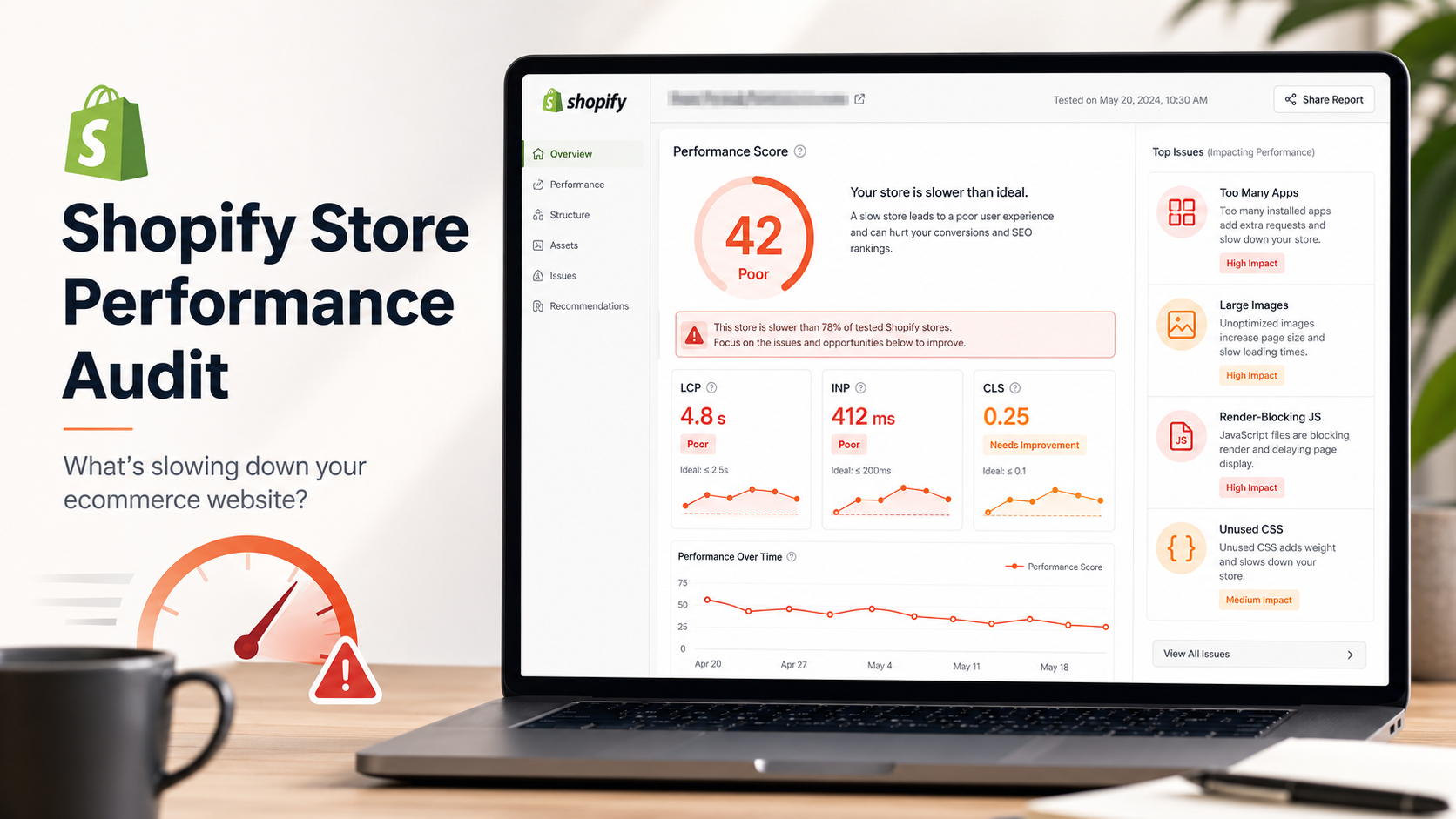
A slow Shopify store rarely becomes slow overnight.
It usually happens one small decision at a time.
You install a review app because customers need social proof. Then you add a currency converter, an upsell tool, a chat widget, a pop-up, a page builder and another analytics script. A few months later, the homepage still looks polished, but it takes several seconds before visitors can properly use it.
That is when the questions begin:
Why is my Shopify store loading slowly? Is Shopify itself the problem? Is the theme too heavy? Are the apps causing it? Can the store be made faster without breaking its design, tracking or functionality?
In most cases, Shopify is not the only cause. The real problem is the combination of theme code, images, apps, scripts, fonts and design choices being loaded together on every page.
This guide explains the most common reasons Shopify stores become slow, how to identify the real bottleneck and which improvements are likely to make the greatest difference.
Quick answer: Why is your Shopify store slow?
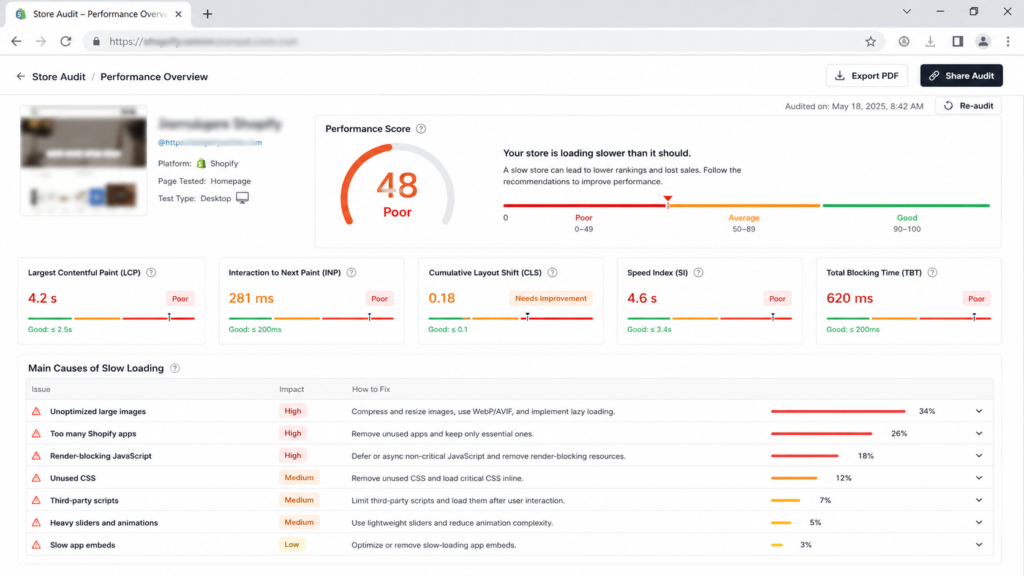
Your Shopify store may be slow because it loads too many apps, large images, third-party scripts, videos, custom fonts or unnecessary JavaScript. A heavily customized theme, old app code, oversized homepage sections and poorly loaded tracking tools can also delay the page.
If you want a done-for-you audit and fix, our Shopify speed optimization services page explains how we approach app bloat, Liquid cleanup and mobile Core Web Vitals without breaking the storefront design.
The issue is usually not one single file. It is the accumulated cost of everything the browser must download, process and display before a customer can interact with the store.
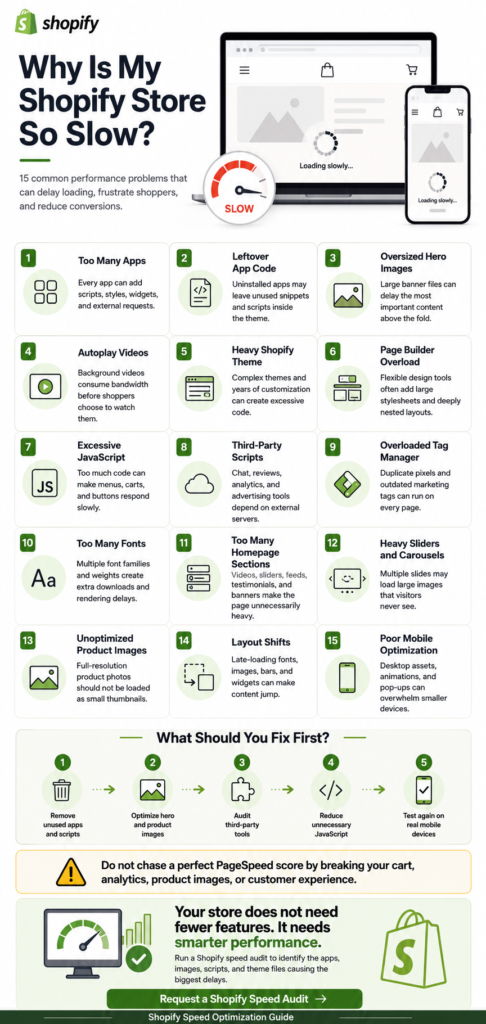
The most common causes include:
- Too many Shopify apps
- App code remaining after uninstallation
- Large hero images and banners
- Autoplay videos
- Heavy themes or page builders
- Excessive JavaScript
- Third-party marketing scripts
- Poor font loading
- Too many homepage sections
- Slow sliders and carousels
- Unoptimized product images
- Render-blocking CSS
- Layout shifts
- Overloaded tracking setups
- Mobile-specific performance problems
Before making changes, it is important to identify which of these issues actually affects your store.
The moment speed becomes a business problem
Imagine a customer arriving from an Instagram advertisement.
The product in the advertisement looks exactly like what they need. They tap the link, but instead of seeing the product immediately, they see a blank area, a loading spinner or an unfinished page. The product image eventually appears, but the announcement bar moves, the price jumps and a pop-up covers the screen.
The customer has not yet decided that your product is bad. They have simply lost confidence in the experience.
That is what makes store speed important. It is not only a technical score. It affects how quickly shoppers can understand your offer, explore products, select variants and move toward checkout.
A visually beautiful store can still feel unreliable when it responds slowly.
How to confirm whether your Shopify store is actually slow
Before changing the theme or removing apps, test the store using more than one method.
A single score does not explain the entire experience.
Test important page types
Do not test only the homepage. Check:
- Homepage
- Collection pages
- Product pages
- Search results
- Cart drawer or cart page
- Blog pages
- Landing pages used for advertising
A homepage may perform well while product pages struggle because of reviews, recommendations, subscriptions, bundles or variant scripts.
Test on mobile and desktop
Shopify stores often feel fast on a powerful desktop computer connected to Wi-Fi but perform poorly on an average mobile phone using a mobile network.
Mobile testing matters because mobile devices generally have less processing power and smaller screens. Large scripts, animations and visual sections can create a much more noticeable delay.
Use multiple tools
Useful testing methods include:
- Google PageSpeed Insights
- Chrome Lighthouse
- Chrome DevTools
- Shopify’s web performance reports
- Real-device testing
- Screen recordings of actual page loads
Each method tells you something different.
Lab tools simulate controlled conditions. Real-user data reflects how actual visitors experience the store. Browser tools help identify the individual files and scripts creating delays.
Do not focus only on reaching a perfect score. Focus on making important content appear quickly and ensuring customers can use the page without frustrating delays.
1. Too many Shopify apps
Apps are one of the most common causes of Shopify performance problems.
Many apps add JavaScript, CSS, tracking requests, widgets or external resources to the storefront. One app may have a small impact, but ten apps loading together can create a noticeable delay.
Common performance-heavy app categories include:
- Product review widgets
- Upsell and cross-sell tools
- Page builders
- Live chat widgets
- Heatmaps and session recordings
- Pop-ups
- Loyalty programs
- Subscription tools
- Currency converters
- Social media feeds
- Recommendation engines
- Countdown timers
- Advanced search tools
This does not mean every app is poorly built or that all apps should be removed. The real question is whether the value of each app justifies its performance cost.
How to fix it
Create a list of every app installed on the store and ask:
- Is this app currently being used?
- Does it generate measurable sales or useful data?
- Does another installed app provide the same feature?
- Does it load on pages where it is not needed?
- Can the same functionality be implemented more efficiently?
Test changes on a duplicate theme whenever possible. Disable app embeds or app blocks one at a time and compare performance.
Avoid removing multiple tools at once because you may not know which change produced the improvement.
2. Old app code remains after an app is removed
Uninstalling an app does not always remove every code change it previously made.
Older apps may have inserted snippets, script tags, stylesheet references or Liquid code directly into theme files. Even when the app is gone, parts of its implementation may remain.
This leftover code can:
- Request files that are no longer needed
- Produce console errors
- Load inactive scripts
- Create duplicate tracking
- Add unnecessary CSS
- Conflict with newer features
How to fix it
Review the theme for files and code related to previously installed apps.
Common places to inspect include:
theme.liquid- Product templates
- Cart templates
- Snippets
- Sections
- App embed settings
- Custom JavaScript files
- Custom CSS files
Do not delete unfamiliar code from a live theme. Duplicate the theme first, document the change and test important store functions.
Check product variants, cart behaviour, search, discount displays, analytics and conversion tracking after cleanup.
3. Large hero images
The hero image is often the largest visual element above the fold, which means it frequently becomes the page’s Largest Contentful Paint element.
A visually impressive banner can easily become several megabytes when it is exported at an unnecessarily large resolution or saved in an inefficient format.
The browser may be forced to download a desktop-sized image even when the visitor is using a small mobile device.
How to fix it
Use appropriately sized images for their actual display area.
Recommended practices include:
- Use responsive Shopify image rendering
- Serve different dimensions for different screen sizes
- Compress images before uploading
- Prefer modern formats where appropriate
- Avoid embedding text inside oversized image files
- Set width and height values
- Do not lazy-load the main above-the-fold image
- Preload the correct hero image only when necessary
Do not replace every image with a tiny, blurry version. The goal is to balance visual quality with file size.
A product store still needs strong photography. Optimization should preserve the image quality customers need to evaluate the product.
4. Autoplay videos and animated banners
Videos can make a homepage feel premium, but they can also become one of its heaviest assets.
An autoplay background video may begin downloading before a visitor has decided to watch it. On mobile devices, this can delay the appearance of important content and consume unnecessary data.
Animated GIFs are often even less efficient because they can be much larger than compressed video formats.
How to fix it
Consider replacing autoplay video with:
- A lightweight poster image
- A click-to-play video
- A short, compressed video
- A static mobile alternative
- A video loaded only after user interaction
When video is essential, keep it short, remove unnecessary audio, compress it carefully and avoid loading multiple videos on the same page.
The opening section should communicate the product or offer even if the video has not loaded.
5. A heavy Shopify theme
Not every theme has the same performance profile.
Some themes include advanced animations, mega menus, predictive search, quick views, filters, sliders, pop-ups, product recommendations and several layout systems. Even when you do not actively use every feature, parts of the supporting code may still be present.
A theme can also become heavy after years of customization.
Developers may add new features without removing old implementations, resulting in duplicate scripts, repeated styles and code that is difficult to maintain.
How to fix it
Before replacing the entire theme, determine whether the issue comes from:
- The original theme
- Custom development
- Apps
- Tracking scripts
- Page-builder sections
- Content choices
Test a clean copy of the original theme with similar products and images. If the clean theme performs much better, the slowdown probably comes from later modifications.
Replacing a theme is a major project and should not be the first reaction. A careful audit may reveal that only a few sections or scripts need attention.
6. Page-builder overload
Page builders make design more accessible, but flexibility usually comes with additional code.
Some builders create deeply nested HTML, large stylesheets, global JavaScript files or separate assets for many components. A landing page containing numerous visual blocks can become expensive for the browser to render.
How to fix it
Use page builders selectively.
They may be useful for campaign pages, but your entire storefront does not necessarily need to depend on one.
Remove unused blocks, duplicated sections and decorative elements that do not support the buying journey. Where practical, move high-traffic templates to well-built native Shopify sections.
Do not judge a section only by how it looks in the editor. Test what it adds to the final storefront.
7. Excessive or unused JavaScript
JavaScript controls many interactive features:
- Menus
- Variant selectors
- Cart drawers
- Product galleries
- Search
- Filters
- Pop-ups
- Reviews
- Recommendations
- Analytics
- Personalization
The browser must download, parse and execute this code. When too much JavaScript runs during page load, the store may appear visible but remain difficult to interact with.
A customer may tap the menu or add-to-cart button and receive no immediate response because the browser is still busy.
How to fix it
A developer can improve JavaScript delivery by:
- Removing unused libraries
- Loading scripts only on relevant templates
- Deferring non-critical scripts
- Delaying marketing tools until consent or interaction
- Replacing heavy libraries with smaller alternatives
- Breaking large script bundles into smaller files
- Avoiding duplicate libraries
- Cleaning up obsolete theme functions
- Reducing long-running tasks
Do not blindly delete files flagged as “unused.” A script may be required after a user selects a variant, opens a menu or adds an item to the cart.
Every change must be tested across the complete purchase journey.
8. Too many third-party scripts
Third-party scripts are loaded from external services rather than directly from your Shopify theme.
Examples include:
- Advertising pixels
- Analytics platforms
- Heatmaps
- Chat tools
- Review services
- Affiliate tracking
- A/B testing tools
- Personalization platforms
- Social media widgets
- Fraud-prevention tools
You have less control over how quickly an external provider responds or how efficiently its script runs.
How to fix it
Audit every third-party request and identify who owns it.
Ask whether each script is:
- Essential
- Duplicated
- Properly configured
- Needed on every page
- Needed before the visitor interacts
- Still connected to an active campaign
Tracking setups often become crowded because multiple agencies, employees and apps add tags over time.
A clean tracking plan can improve both performance and data quality.
9. Poorly configured Google Tag Manager
Google Tag Manager itself is not automatically the problem. The issue is usually what has been placed inside it.
A container may include:
- Duplicate analytics tags
- Old advertising pixels
- Tags firing on every page
- Custom HTML scripts
- Multiple remarketing tools
- Unused triggers
- Testing scripts left in production
How to fix it
Review the container and document:
- What each tag does
- Who added it
- Which pages trigger it
- Whether it is still required
- Whether it duplicates a Shopify app or sales-channel integration
Avoid loading the same tracking platform through an app, theme code and Tag Manager at the same time.
After changing tracking, verify purchases, add-to-cart events and other important conversions before publishing.
10. Too many custom fonts and font weights
Typography strongly influences brand identity, but every additional font file creates another request.
A store may load separate files for:
- Regular text
- Medium text
- Semibold text
- Bold text
- Italics
- Multiple font families
- Icon fonts
If fonts block text rendering, visitors may temporarily see blank text or a noticeable style change.
How to fix it
Reduce the number of families and weights.
For many stores, one primary font family with a carefully selected set of weights is enough.
Additional improvements include:
- Loading only required character sets
- Preloading only critical fonts
- Using modern font formats
- Applying an appropriate font-display strategy
- Removing unused icon-font libraries
- Using system fonts for secondary interface elements where suitable
Do not preload every font file. Excessive preloading can compete with more important assets such as the main product image.
11. Too many homepage sections
A homepage often grows because every team wants its content included.
The result may contain:
- Announcement bar
- Hero slider
- Featured collections
- Promotional banners
- Video
- Testimonials
- Brand story
- Instagram feed
- Product recommendations
- Press logos
- Blog posts
- Newsletter form
- App widgets
Each section may look reasonable on its own, but together they create a long and resource-heavy page.
How to fix it
Decide what the homepage must accomplish.
For most stores, it should help visitors:
- Understand the brand
- Discover important products
- Recognize the value proposition
- Build trust
- Navigate toward shopping
Remove sections that repeat the same message or receive little engagement.
Content below the fold can be lazy-loaded, but lazy loading does not solve every problem. JavaScript and layout complexity can still affect performance.
12. Sliders and carousels
Sliders often require extra JavaScript, styles and images. A hero carousel may download several large banners even though the customer initially sees only one.
They can also create layout shifts when dimensions are not reserved correctly.
How to fix it
Use a single strong hero message instead of rotating several weak messages.
When a carousel is necessary:
- Load the first slide as the priority
- Delay non-visible slide images
- Set stable dimensions
- Avoid heavy transition effects
- Limit the number of slides
- Ensure controls are accessible
- Test swipe performance on mobile
A slider should support product discovery, not exist only because the theme includes one.
13. Unoptimized product and collection images
Product photography is essential, but many stores upload the original files directly from a camera or design tool.
A product page may include several high-resolution images, zoom files, variant images and recommendation cards. Collection pages can display dozens of product thumbnails at once.
How to fix it
Use Shopify’s image transformation capabilities and request dimensions appropriate to each layout.
Also:
- Avoid loading full-resolution images as thumbnails
- Use responsive image attributes
- Lazy-load below-the-fold images
- Prioritize the main product image
- Compress decorative assets
- Remove duplicate uploads
- Use consistent aspect ratios to reduce layout movement
Be careful with aggressive lazy loading. The first visible product or hero image should not wait unnecessarily.
14. Layout shifts and unstable elements
A store can feel slow even when it technically loads quickly if content moves while the visitor is trying to use it.
Common causes include:
- Images without dimensions
- Review widgets appearing late
- Announcement bars injected after load
- Fonts changing after text appears
- Pop-ups moving content
- Promotional banners loading above the page
- Product-price blocks changing height
- Payment messages appearing asynchronously
How to fix it
Reserve space before dynamic elements load.
Set dimensions or aspect ratios for images, videos and embeds. Give app widgets predictable containers. Avoid injecting new content above something the user may already be reading or tapping.
Visual stability is especially important around product titles, prices, variant selectors and add-to-cart controls.
15. Mobile design is doing too much
Mobile performance is not simply desktop performance on a smaller screen.
A mobile page may still download desktop assets, heavy videos, oversized images and complex animations. Sticky bars, chat widgets, pop-ups and browser controls can leave little usable screen space.
How to fix it
Design intentionally for mobile.
Consider:
- Smaller image sources
- Static alternatives to desktop animations
- Fewer visible sections
- Simpler navigation
- Reduced motion
- Lightweight sticky elements
- Delayed chat and pop-ups
- Clearly accessible add-to-cart controls
- Touch-friendly interaction areas
Test the store on real mid-range mobile devices, not only through a desktop browser’s responsive mode.
Is Shopify itself slow?
Shopify provides the hosting, infrastructure and commerce platform, but the final storefront experience depends heavily on the theme, apps, media and third-party services selected by the store owner.
Because Shopify is a hosted platform, you cannot configure the server in the same way you might optimize a custom hosting environment. However, there is still a great deal you can improve at the storefront level.
The most meaningful opportunities usually involve:
- Theme code
- App usage
- Asset delivery
- Image strategy
- JavaScript execution
- Third-party integrations
- Page structure
- Mobile experience
Blaming the platform without auditing the storefront can lead to expensive changes that do not solve the actual problem.
What should you fix first?
Not every optimization has the same value.
A sensible order is:
1. Remove obvious waste
Start with unused apps, obsolete tracking scripts, duplicate tools and old code.
2. Optimize the largest above-the-fold asset
This is often the hero image, product image or homepage video.
3. Review third-party scripts
Identify tools that load early and block the main experience.
4. Reduce JavaScript work
Prioritize scripts that delay interaction on mobile.
5. Stabilize the layout
Fix image dimensions, app containers, fonts and late-loading bars.
6. Simplify important templates
Focus on the homepage, collection pages and best-selling product pages.
7. Measure again
Retest after each group of changes. Keep a record of what changed and whether the result improved.
What not to do when optimizing Shopify speed
Some speed fixes can damage the store when applied without proper testing.
Avoid:
- Deleting unfamiliar JavaScript from the live theme
- Removing app code without checking dependencies
- Delaying essential cart functionality
- Breaking analytics in pursuit of a higher score
- Lazy-loading the main hero or product image
- Compressing product images until they look poor
- Removing accessibility features
- Hiding meaningful content from mobile users
- Installing another “speed booster” app without auditing the existing setup
- Publishing changes without testing checkout-related flows
A higher score is not useful if customers cannot select a variant, open the cart or complete their purchase.
How long does Shopify speed optimization take?
The timeline depends on the condition of the store.
A small store with a clean theme and a few unnecessary apps may improve quickly. A heavily customized store with years of theme changes, multiple integrations and complex tracking may require a deeper audit and staged implementation.
A professional process normally includes:
- Baseline testing
- Theme and app audit
- Prioritization
- Backup or duplicate-theme preparation
- Implementation
- Functional testing
- Performance retesting
- Monitoring after publication
Optimization should be treated as controlled engineering work, not a collection of random code snippets.
Frequently asked questions
Why is my Shopify store suddenly slow?
A sudden slowdown may be caused by a newly installed app, recently published theme change, added tracking script, new homepage media or an external service loading slowly. Compare the store before and after recent changes and inspect newly added resources first.
Do Shopify apps slow down a store?
Some apps add scripts, styles, widgets and external requests that affect performance. The impact varies by app and configuration. Evaluate each app based on both its business value and its actual storefront cost.
Will removing apps make Shopify faster?
Removing unused or heavy apps can help, but uninstalling an app may not remove every theme modification. Check for remaining code and test the store after cleanup.
Is a low PageSpeed score bad for sales?
A low score can indicate real usability problems, but the score itself is not a direct measurement of sales. Focus on whether pages load quickly, remain stable and respond promptly for actual customers.
Can Shopify reach a 100 PageSpeed score?
Some simple pages may achieve extremely high scores, but a functioning ecommerce store often requires product media, analytics, cart functionality and third-party tools. A perfect score should not take priority over business-critical features and a reliable customer experience.
Should I change my Shopify theme to improve speed?
Not immediately. First determine whether the slowdown comes from the base theme, customizations, apps or content. A new theme can still become slow if the same apps and heavy assets are added to it.
Does Shopify speed optimization affect design?
It should not require destroying the design. Good optimization preserves the brand experience while improving how assets, code and features are delivered. Some decorative elements may need to be simplified when their performance cost exceeds their value.
How often should I test Shopify performance?
Test after major theme changes, new app installations, marketing-script updates and homepage redesigns. It is also useful to review performance regularly because external apps and scripts can change over time.
Final thoughts
A slow Shopify store is rarely fixed by pressing one button.
The real improvement comes from understanding what the store asks the browser to do, deciding which features genuinely support the customer journey and removing unnecessary work.
Start with evidence rather than assumptions.
Audit the apps. Inspect the theme. Test mobile product pages. Review large images and third-party scripts. Make one controlled group of changes at a time, then compare the results.
The objective is not to create an empty store that earns a perfect laboratory score.
The objective is to create a store that looks credible, responds quickly and allows customers to move from interest to purchase without unnecessary friction.
When performance work protects design, functionality, analytics and the buying experience, speed becomes more than a technical improvement. It becomes part of the store’s ability to sell.
Need help identifying what is slowing down your Shopify store?
A proper Shopify performance audit can identify the apps, theme files, images and third-party scripts creating the greatest delays.
Our Shopify speed optimization service focuses on measurable improvements while protecting important store functions, design elements, tracking and customer journeys.
Request a Shopify speed audit to receive a clear breakdown of the main performance problems and the changes that should be prioritized first.