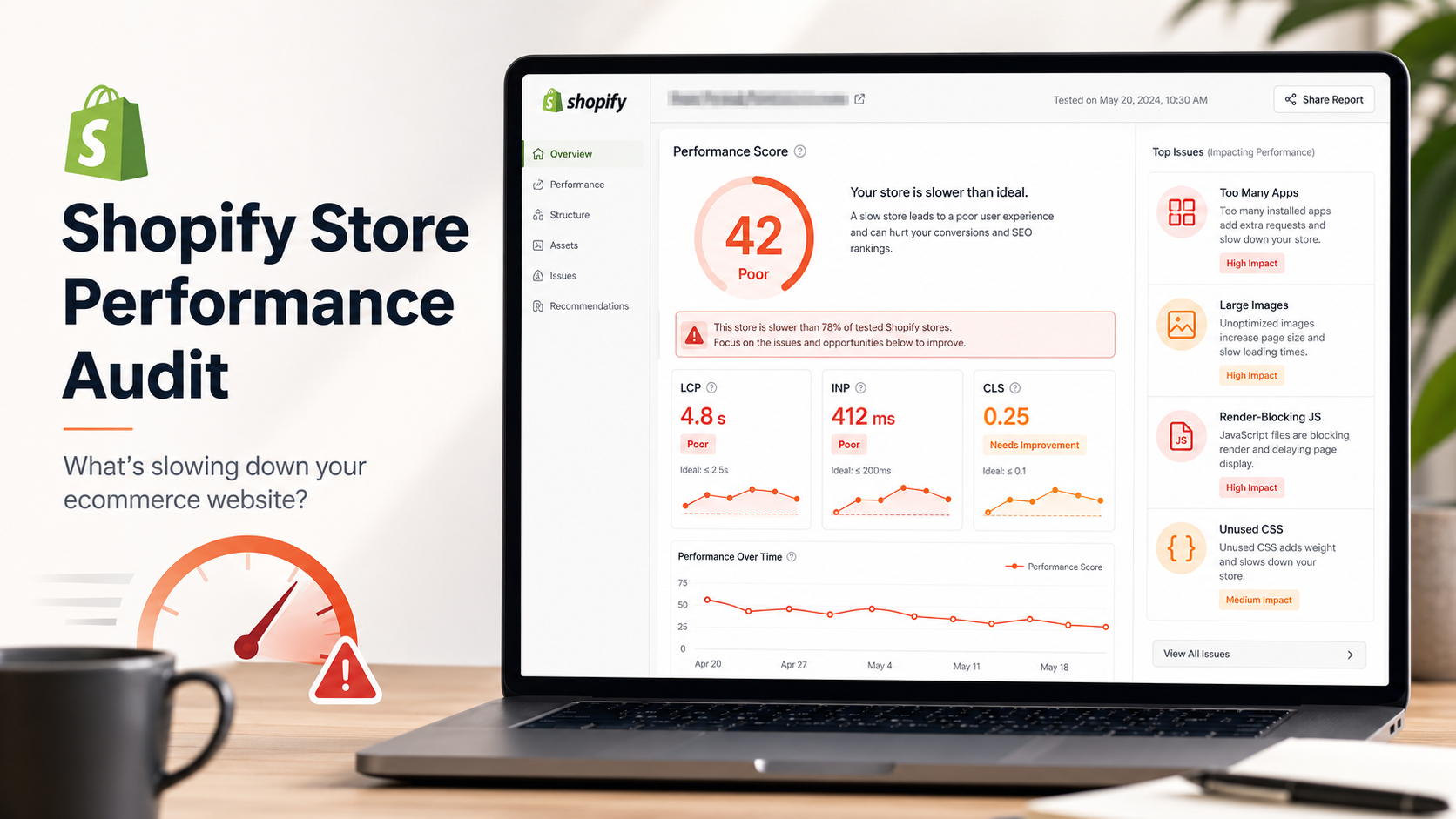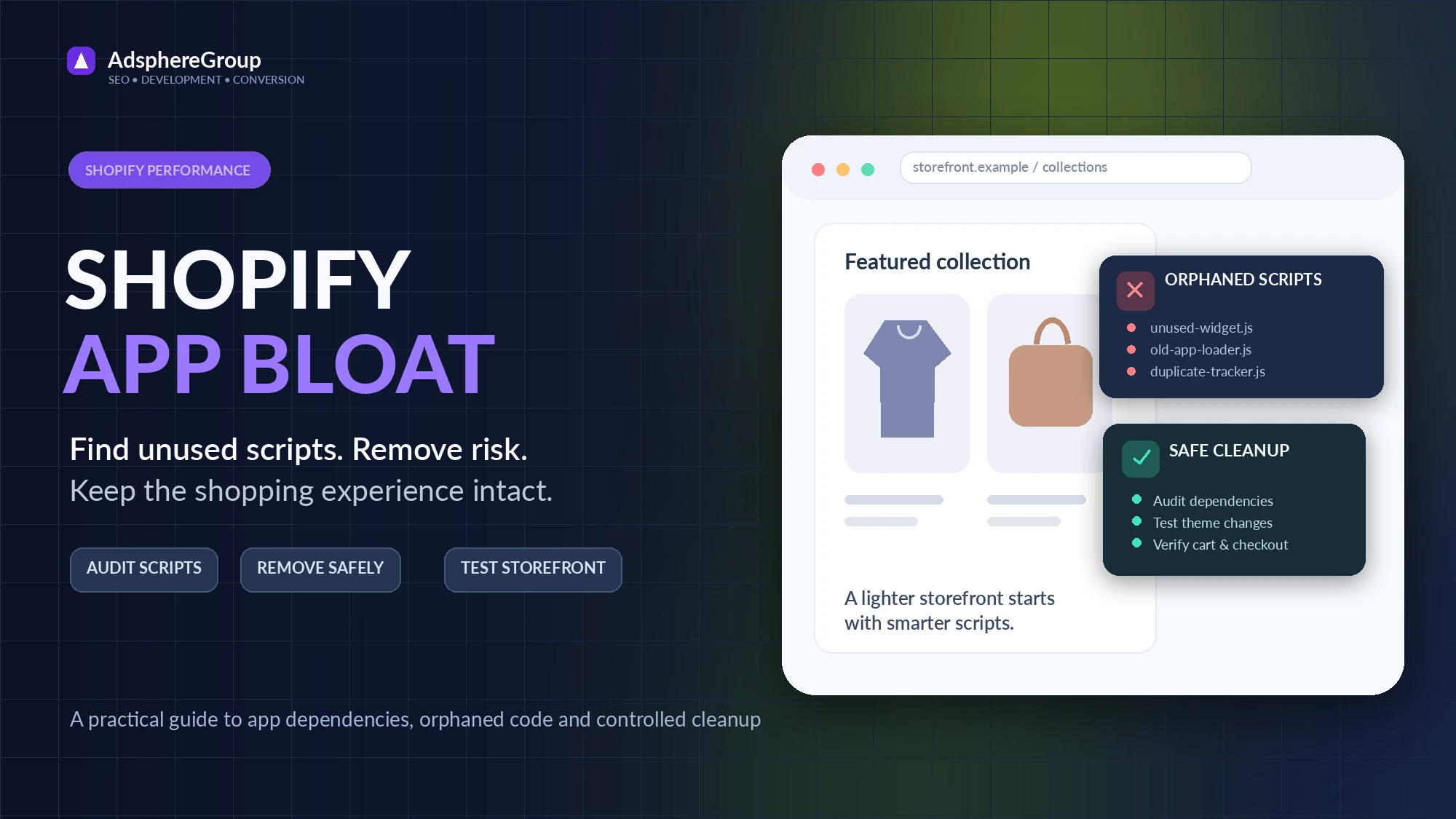
Slow Shopify stores are rarely caused by one problem. For many merchants, the biggest hidden culprit is app bloat—layers of leftover scripts, styles, and third-party requests that keep loading even after you stop using an app. This guide explains how app bloat happens, how to clean it up safely, and when it makes sense to bring in a technical team to help.
Quick practical test: which Shopify app is responsible for extra storefront requests?
An installed app is not automatically the cause of a slow page. A storefront may load a legacy ScriptTag, a theme snippet, a theme app extension, a tag-manager integration or several scripts that make the same request. Before uninstalling anything, collect a repeatable baseline and identify the owner of each expensive request.
Illustrative app-bloat investigation (not a tested client benchmark)
- Establish a baseline: note the exact product or collection URL, device, test date, representative visitor conditions and whether a real-user Core Web Vitals dataset is available. Save a Chrome DevTools Network waterfall and list the largest or longest third-party JavaScript requests.
- Find the code owner: search the active theme for related script or snippet references, inspect enabled theme app extensions, and review relevant app settings. Some assets are injected outside editable theme files; do not assume every request is left behind by an uninstalled app.
- Choose the least disruptive action: keep a required revenue or accessibility feature; remove only a confirmed unused dependency; replace overlapping apps after a feature audit; or restrict nonessential scripts when that is technically supported.
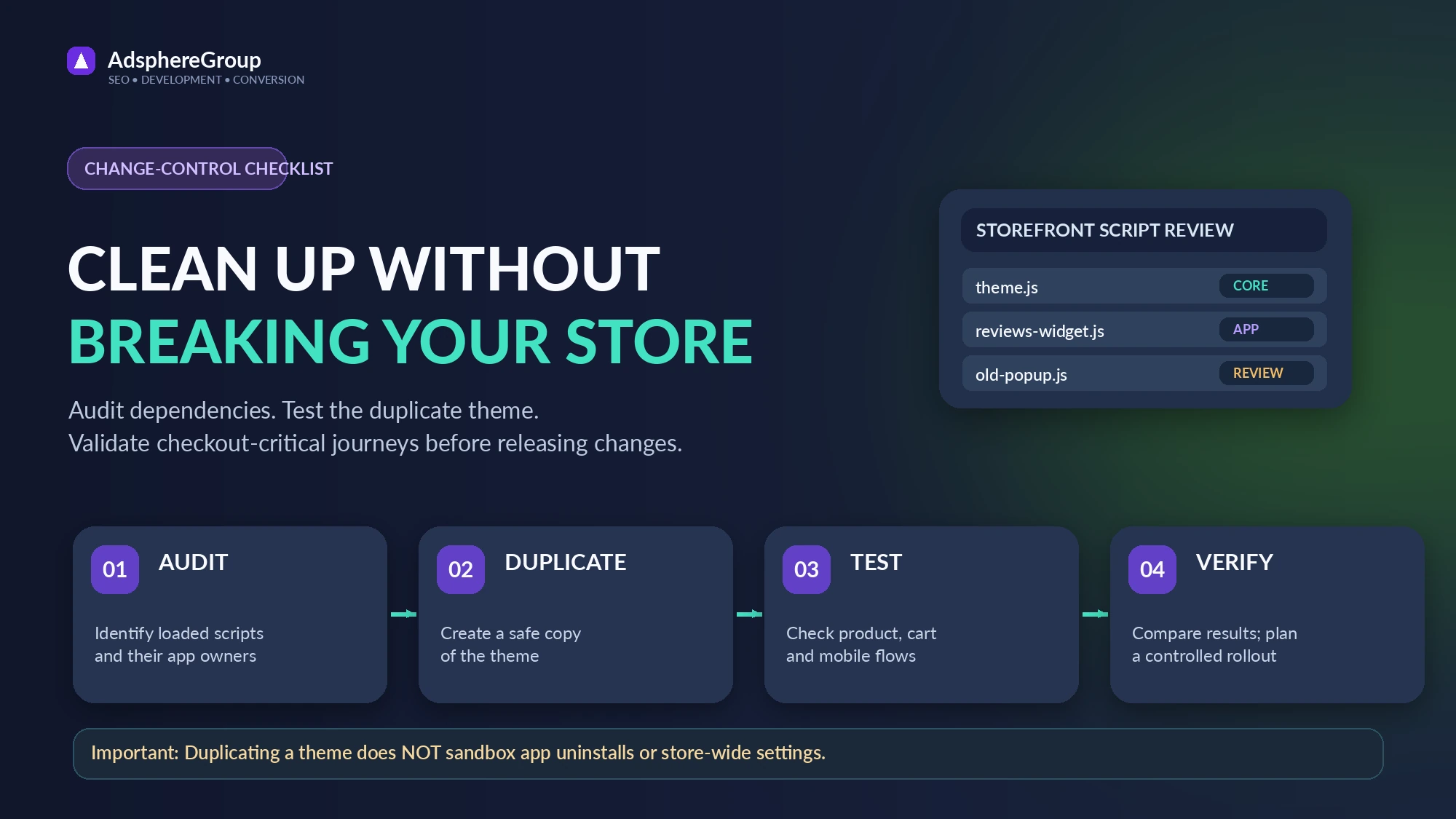
- Test safely: use a duplicate theme for theme edits, check mobile menus, search, product selection, cart, promotions, analytics and checkout-related integrations. Store-wide app uninstallations, settings and external services may still affect the live store.
- Re-measure: compare the same pages and similar test conditions after changes. Record requests removed and user-journey regressions, not a made-up speed score or guaranteed uplift.
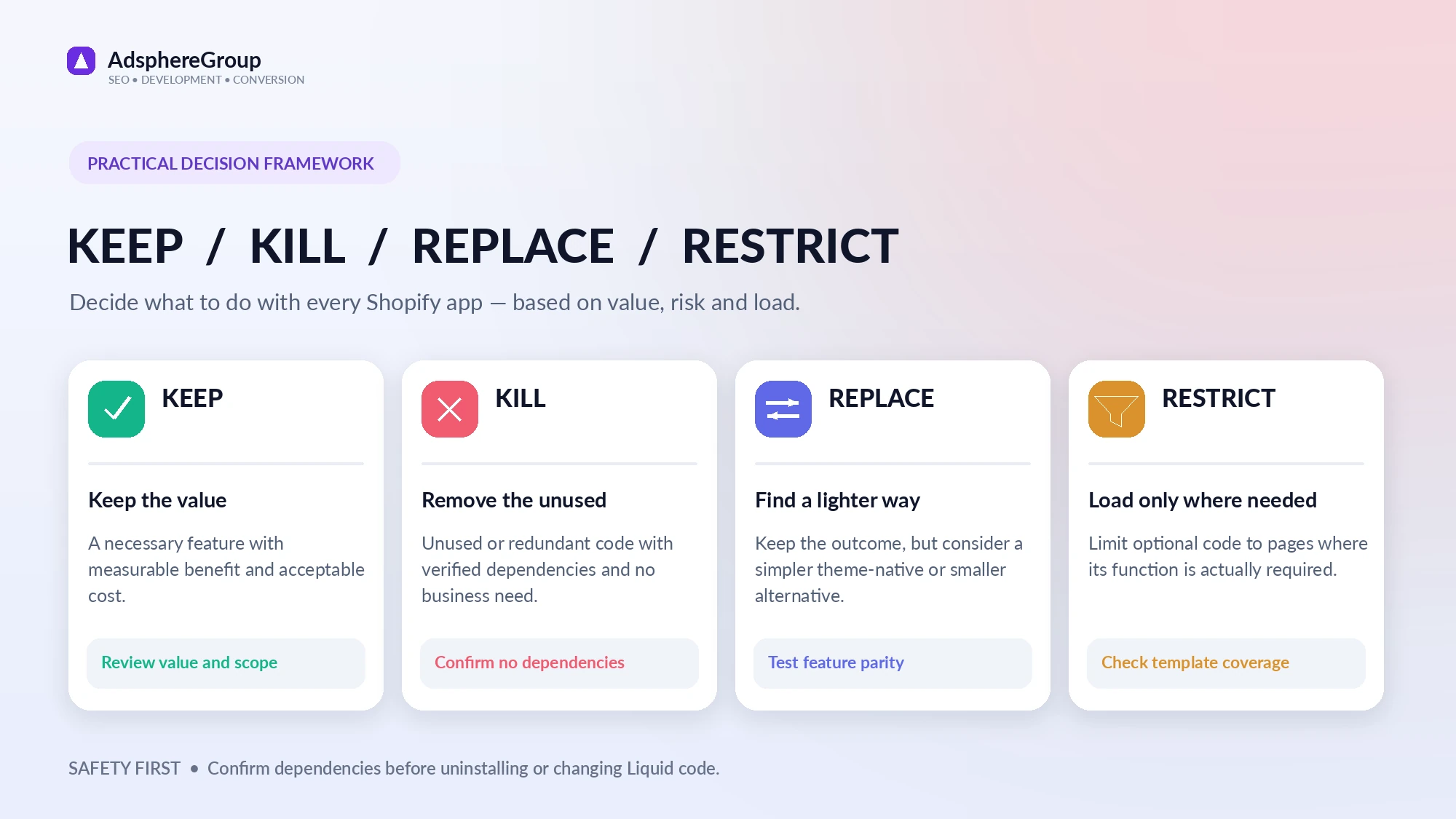
Keep / Kill / Replace / Restrict: decision evidence
| Decision | Evidence needed | Safe next step |
|---|---|---|
| Keep | Required business or checkout function | Retain; measure actual cost and dependencies |
| Kill | Confirmed unused code with an identifiable owner | Remove with backup, owner approval and regression test |
| Replace | Two apps duplicate a useful function | Verify feature parity and migrate without data loss |
| Restrict | Feature only needed on certain templates | Test legitimate conditional loading and retest coverage |
Related reading: Shopify technical SEO implementation covers crawl and canonical problems distinct from app performance. If the storefront is already unstable or business-critical integrations are involved, seek qualified development assistance before changing live apps.
What Shopify App Bloat Really Is (And Why Uninstalling Is Not Enough)
When you install a Shopify app, you are not just adding a feature—you are adding code that runs on your storefront. That code can come from several distinct places, and understanding the difference matters for cleanup:
- Native Shopify features — built-in capabilities such as Online Store settings, checkout extensibility, and discount logic that Shopify controls directly. These do not contribute to app bloat.
- Theme App Extensions — the modern, recommended pattern where apps connect to your theme through approved extension points. When you uninstall an app that uses this pattern correctly, its extension blocks are removed and most of its code stops loading.
- Legacy ScriptTags and custom Liquid snippets — the older pattern where an app injects JavaScript or HTML directly into your theme files, often across multiple templates. This is where bloat accumulates and persists after uninstall.
On stores that have been running for two or more years, it is common to find a mix of all three. An app installed in 2021 may have used ScriptTags because Theme App Extensions were not yet widely adopted. When you uninstall that app today, Shopify removes it from your app list, but the injected snippets in theme.liquid, the external JavaScript still referenced in your layout, and any configuration metafields left behind continue to load on every page request. You no longer benefit from the feature, but your visitors still pay the performance cost.
This is the core of app bloat: unused or orphaned app code that consumes your performance budget without delivering any value.
Step 1 — Identify Which Apps Are Actually Hurting Performance
Removing apps at random is the fastest way to break something important. A structured diagnostic pass gives you a prioritized list before you touch anything.
Profile Requests and Scripts First
Open your store in a browser with developer tools and navigate to the Network tab. Filter by JavaScript and note every third-party domain that loads a script. Then switch to the Coverage tab and run a page load — this shows you how much of each loaded script is actually executed during the page visit. A script that loads 80 KB but executes 4 KB is a strong candidate for removal or deferral.
Look for three specific patterns:
- Repeated requests to the same app domain across unrelated pages — for example, a product review widget script loading on your shipping policy page or 404 page, where no reviews are displayed.
- Large JavaScript bundles that load before your main content — these increase Largest Contentful Paint (LCP) by competing with your hero image or above-the-fold text for bandwidth and main-thread time.
- Client-side tracking and analytics scripts that fire on every page — each additional tracker adds to Interaction to Next Paint (INP) by occupying the main thread during user interactions.
Once you have a list of app domains and script URLs, cross-reference them against your Shopify admin app list. Some scripts will map directly to an installed app. Others may be orphaned from an app you already uninstalled — those are your highest-priority cleanup targets because they deliver zero value.
Distinguish App Code from Theme Code
Before you attribute a slow script to an app, confirm it is not part of your theme itself. Open your theme code editor and search for the script URL or domain name. If it appears in a snippet file with a name like app-name-snippet.liquid or inside a conditional block referencing an app-specific metafield, it is almost certainly app-injected code. If it appears in a core theme file without any app-specific context, it may be a theme feature you actually use.
This distinction matters because removing a theme-level script without understanding its purpose can break layout or functionality that has nothing to do with the app you are targeting.
Step 2 — The Keep / Kill / Replace / Restrict Framework
Once you have a prioritized list of apps contributing to bloat, evaluate each one against four options rather than defaulting to a binary keep-or-remove decision.
Keep
The app provides measurable business value (revenue attribution, customer retention, compliance) and its performance cost is proportionate. A loyalty program that drives repeat purchases and loads one 30 KB script is worth keeping. Document why you kept it so future audits do not re-litigate the decision.
Kill
The app is unused, duplicates a native Shopify feature, or its business value cannot be demonstrated. Kill candidates include: apps installed to test a feature that was never launched, apps whose free trial ended and whose paid plan was never activated, and apps that solve problems Shopify now handles natively — such as basic product badges, simple announcement bars, or low-stock notices that can be implemented with theme logic at zero performance cost.
Replace
The app provides a feature you need, but a lighter-weight alternative exists. A common example is a heavy page-builder app used only for a single landing page — replacing it with a custom Liquid section eliminates the app’s JavaScript entirely while preserving the design. Similarly, some review apps load significantly more JavaScript than others for equivalent functionality; switching to a lighter option can recover meaningful LCP time.
Restrict
The app is valuable but loads its code everywhere when it only needs to load on specific pages. Many apps support conditional loading — for example, a size guide widget that only needs to load on product pages, not on the homepage, blog, or checkout. If the app does not support conditional loading natively, a developer can wrap its ScriptTag or snippet in a Liquid conditional that checks the current template. This is often the highest-impact, lowest-risk optimization for apps you cannot remove.
Step 3 — Test Changes Safely Using a Staging Theme
The most common reason merchants avoid app cleanup is the fear of breaking their live store. A staging theme workflow removes that risk almost entirely.
Shopify allows you to duplicate your active theme and work on the copy without affecting your live storefront. Here is a practical workflow:
- Duplicate your active theme from the Themes section of your admin. Name it clearly, for example: Staging — App Cleanup — [Date].
- Make all code changes on the duplicate — remove orphaned snippets, add Liquid conditionals to restrict app loading, and clean up unused CSS references.
- Preview the staging theme across your key page types: homepage, collection page, product page, cart, and a blog post. Check that all visible functionality works as expected.
- Run a performance test on the staging theme URL using a page speed tool that accepts a custom URL parameter. Compare the results against your live theme baseline.
- Uninstall the app from your admin only after confirming the staging theme performs correctly without it. Uninstalling first can make it harder to diagnose issues if something breaks.
- Publish the staging theme once you are satisfied with both functionality and performance results.
Duplicating your theme reduces risk when testing theme-file changes, but uninstalling apps or changing store-wide settings can still affect the live storefront. Test app dependencies separately, schedule potentially disruptive changes carefully, and keep a rollback plan.
Realistic Core Web Vitals Expectations from App Cleanup
App bloat removal can produce meaningful Core Web Vitals improvements, but the gains depend heavily on what you remove and what remains. Setting accurate expectations prevents disappointment and helps you evaluate whether professional help is warranted.
LCP (Largest Contentful Paint) improves most when you remove or defer render-blocking scripts that load before your hero image or above-the-fold content. Removing a single large app script that was blocking the main thread can reduce LCP by several hundred milliseconds on mobile. However, if your LCP element is a large unoptimized image, app removal alone will not fix it — image optimization is a separate task.
INP (Interaction to Next Paint) improves when you reduce the number of scripts competing for main-thread time during user interactions. Removing tracking-heavy apps or restricting analytics scripts to fire only after the page is interactive can noticeably reduce INP on mobile devices with limited processing power.
CLS (Cumulative Layout Shift) is less directly affected by app removal unless a specific app is injecting elements that shift layout after the initial render — for example, a cookie consent banner or a chat widget that pushes content down. Removing or properly sizing these elements can eliminate CLS contributions from those sources.
A realistic outcome for a store with significant app bloat — multiple orphaned scripts, several apps loading globally when they are only needed on one page type — is a measurable improvement in mobile LCP and INP. Expecting a specific Lighthouse score guarantee from app cleanup alone is not realistic; Lighthouse scores are influenced by many factors beyond app scripts, including server response time, image formats, font loading, and theme code quality.
When to Handle App Cleanup Yourself vs. When to Hire a Developer
Some app bloat cleanup is genuinely accessible to non-developers. Uninstalling unused apps, removing apps that duplicate native features, and switching to lighter alternatives are decisions any merchant can make. The risk is low and the process is reversible.
The work becomes technical — and the risk of breaking things increases — when it involves:
- Manually editing theme Liquid files to remove orphaned snippets or add conditional loading logic.
- Identifying and safely removing ScriptTag registrations left by uninstalled apps.
- Replacing a complex app feature with custom theme code that maintains the same user experience.
- Diagnosing performance regressions after changes to understand whether the cause is app code, theme code, or a third-party service.
If your store generates meaningful revenue and you are not comfortable editing Liquid files, the cost of a professional cleanup is almost always lower than the cost of a broken storefront during peak traffic. A technical team can also identify bloat that is invisible to standard page speed tools — for example, app code that only loads under specific conditions or on specific device types.
For a broader view of what a thorough Shopify performance review covers, the Adsphere Shopify Readiness Framework outlines the full checklist of technical hygiene checks beyond app cleanup. If you are evaluating professional help, the Shopify Speed Optimization Services page explains what a structured engagement covers and what outcomes are realistic. For context on how to evaluate service providers and what trust signals matter, Shopify Speed Optimization Guarantees covers what legitimate performance guarantees look like and what to be cautious about.
Frequently Asked Questions
Does uninstalling a Shopify app automatically remove all its code from my store?
Not always. Apps that use the modern Theme App Extensions pattern remove their extension blocks on uninstall. Apps that used the older ScriptTag or direct Liquid injection pattern often leave snippets, scripts, and configuration data in your theme files. These orphaned files continue to load until someone manually removes them from the theme code.
Can I test app removal without affecting my live store?
Yes. Shopify allows you to duplicate your active theme and make all changes on the copy. Your live store continues running on the original theme while you test on the duplicate. Once you confirm the staging theme works correctly and performs better, you publish it to replace the live version. This workflow lowers risk for theme edits, but it does not isolate app uninstallations, store-wide integrations or settings. Check these separately before touching the live storefront.
If you are dealing with persistent app bloat and want a technical team to handle the cleanup safely, understanding the full range of causes behind a slow Shopify store is a useful starting point before deciding on next steps.
Visual guide: deciding which Shopify apps to keep
Not every third-party script should be removed. Evaluate its business value, storefront loading cost, dependencies and whether it can be replaced or restricted to specific templates.
Visual checklist: safe Shopify app cleanup
First identify the code owner, test reversible theme changes in a duplicate theme, validate product, cart and mobile workflows, and review results before rollout. Caution: duplicating a theme does not isolate store-wide app uninstallations or settings.